

Diving into the world of macOS notifications can feel like deciphering a new language. But here you are, ready to embrace and understand these features, turning what initially feels disruptive into a tool that aids your day-to-day life. Notifications on macOS are not just mere interruptions; they are crucial elements designed to keep you updated with all that’s happening around you, without requiring you to open each app.
The Notification Center is your hub for viewing and managing these alerts. It’s all about keeping your notifications organized and at bay, accessible yet not intrusive. By swiping from the right edge of your trackpad or clicking the date and time in the menu bar, you’re welcoming yourself into a well-structured space where all your notifications reside.
Imagine getting important messages, calendar reminders, and the latest updates from your favorite apps, all neatly assembled in one place. But you also have complete control here. Don’t feel obligated to respond to every ping and buzz. With macOS, you can choose the types of notifications that demand your attention immediately and those that can be viewed at a more convenient time. This kind of control allows you to manage your focus while staying informed.
The alerts comprise two main styles — banners that appear briefly, giving you a glimpse and then disappearing, and alerts that stay until you decide to interact with them. Knowing the difference can help you decide what’s best for different types of notifications. And let’s not forget the red badge — a small yet mighty indicator that tells you there’s something waiting for you, subtly nudging you to take action.
As you become acquainted with the macOS notification features, remember that you’re in charge. This is your chance to mold a system that works for you, ensuring that you remain the master of your information flow. Let’s make notifications work for you, rather than being something you have to work against.
Stepping into the world of macOS notifications, it’s natural to feel a mix of curiosity and trepidation. You’re not alone in this journey. Many users share these sentiments, eager to find that perfect balance between staying informed and uninterrupted productivity. Personalizing notification preferences is where you can truly start to reclaim that balance, tailoring alerts to fit seamlessly into your lifestyle.
Imagine having the power to decide not just what notifications you receive, but how and when you receive them. This consideration becomes especially crucial when you have many apps vying for your attention, each claiming its own space in your digital realm. Begin by navigating to the System Settings and selecting the Notifications option from the sidebar — your gateway to a more personalized and less chaotic notification experience.
Once you’ve reached this settings hub, a new world of customization awaits. Dive into the list of applications under Application Notifications. Here, you wield the option to toggle notifications on or off for each app. Have a pesky app that buzzes a little too often? Switch it off, guilt-free, knowing you can always opt back in if the need arises. Or perhaps there’s a new application you’ve recently started using, and you want its alerts to have a more prominent presence. The power is in your hands.
The magic doesn’t stop with simply turning notifications on or off. You can further refine your experience by selecting your preferred alert style. opt for banners for a transient, less intrusive update that gently sweeps in and out, or alerts if you need a steadfast reminder that persists until acknowledged. Decisions about whether previews should display only when your Mac is unlocked or if time-sensitive notifications should break through at crucial moments are equally within your control.
Moreover, the option to enable badges adds yet another layer of information. Those small red circles can say as much at a glance as a full notification, offering a constant, yet understated reminder of pending messages or actions needed. These visual cues can be just what you need during a busy day to stay on top of things without feeling overwhelmed.
In sum, personalizing your notification settings isn’t just about settings toggles. It’s about crafting an environment where you feel less controlled by technology and more capable of harnessing it to fit your unique rhythm and needs. As you tailor and refine your system, picture a workspace where you’re not disrupted by constant alerts, but instead informed and ready when you’re prepared to engage. Every adjustment is a step towards a notification experience that complements rather than complicates your day. And remember, while these settings empower you with control, they are not set in stone. Feel free to revisit and adjust them as your workflow evolves, ensuring that your notification system grows with you.
In the search for tranquility amidst the digital noise, optimizing Do Not Disturb and Focus modes on your macOS device is akin to finding a sanctuary of calm. These features allow you to carve out peaceful moments and undisturbed periods where you can concentrate on tasks or simply enjoy a quiet break without interference.
Let’s talk Do Not Disturb first. This mode is your best friend when you need to mute the clamor of notifications. Imagine a meeting in progress or a late-night work session; during these times, the last thing you need is a flurry of alerts distracting you from the task at hand. By accessing System Preferences and selecting Notifications, you can set your Do Not Disturb mode to activate automatically during specific hours, ensuring those crucial silence moments are built into your schedule. You can also toggle it on manually from the Notification Center whenever the need arises. This seamless flexibility ensures you’re never caught off-guard by unexpected alerts.
But macOS doesn’t stop there; enter Focus modes, introduced to elevate your notification management by aligning it more closely with your life’s rhythm. Think of Focus modes as tailored experiences that cater to different facets of your day, whether it’s work, relaxation, or creative endeavors. By diving into System Preferences > Focus, you’re presented with the opportunity to create custom modes that filter notifications based on what’s most relevant to you in that moment. Each mode can be fine-tuned by specifying which apps and contacts are allowed to break through the silence, allowing for a bespoke experience that’s as dynamic as your day.
The beauty of these Focus modes lies in their adaptability. Whether you’re in deep work mode and only want notifications from crucial business apps, or you’re unwinding at home, preferring only personal messages to come through, Focus modes provide the flexibility to switch seamlessly between these states with just a few clicks.
For those on the go, Focus modes can even change automatically based on your location or calendar events, making sure your device stays as aligned with your environment as your mindset. Setting these up might initially require a bit of exploration to get just right, but the effort quickly pays off when you find yourself more present in the moment, without the pull of notifications distracting you.
In cultivating your personalized silence through Do Not Disturb and Focus modes, you’ll feel more empowered and present, all while still staying connected in the ways that are most meaningful to you. Take the reins of your digital alerts and design a system that not only values your time but respects it, helping you build a more focused and balanced relationship with technology.
Embracing the art of effective notification management on macOS is akin to crafting a symphony where each alert plays an integral yet harmonious role in your daily life. It’s easy to feel overwhelmed by the myriad notifications, each one clamoring for your attention, but by employing strategic practices, you can transform this cacophony into a well-tuned composition that boosts productivity and reduces stress.
One of the most impactful steps you can take is to prioritize notifications that truly matter. Begin by assessing which applications are vital to your work and personal life. These are the apps whose notifications deserve a front-row seat. For each selected app, dive into the notification settings and ensure that you’ve customized the alert style and schedule to fit seamlessly into your daily routine. Conversely, liberating yourself from non-essential alerts can bring an immediate sense of relief, allowing you to focus on what’s genuinely important.
In tandem with prioritization, setting up quiet hours is a proactive move that safeguards your valuable time. Choose specific blocks during the day when interruptions are minimized, whether it’s during work sessions or personal moments of relaxation. Muting notifications during meals, family time, or while engaging in deep work ensures that you remain present, not only enhancing productivity but also enriching personal interactions and activities.
Another cornerstone of effective notification management lies in the practice of regularly reviewing and adjusting your settings. Our needs and workflows evolve over time, so it’s wise to periodically revisit your notification preferences. Is there a new app you’re frequently using that warrants more immediate alerts? Or perhaps your workflow has adjusted, and certain notifications are now less critical? Regularly fine-tuning your settings ensures they remain in alignment with your current lifestyle and priorities.
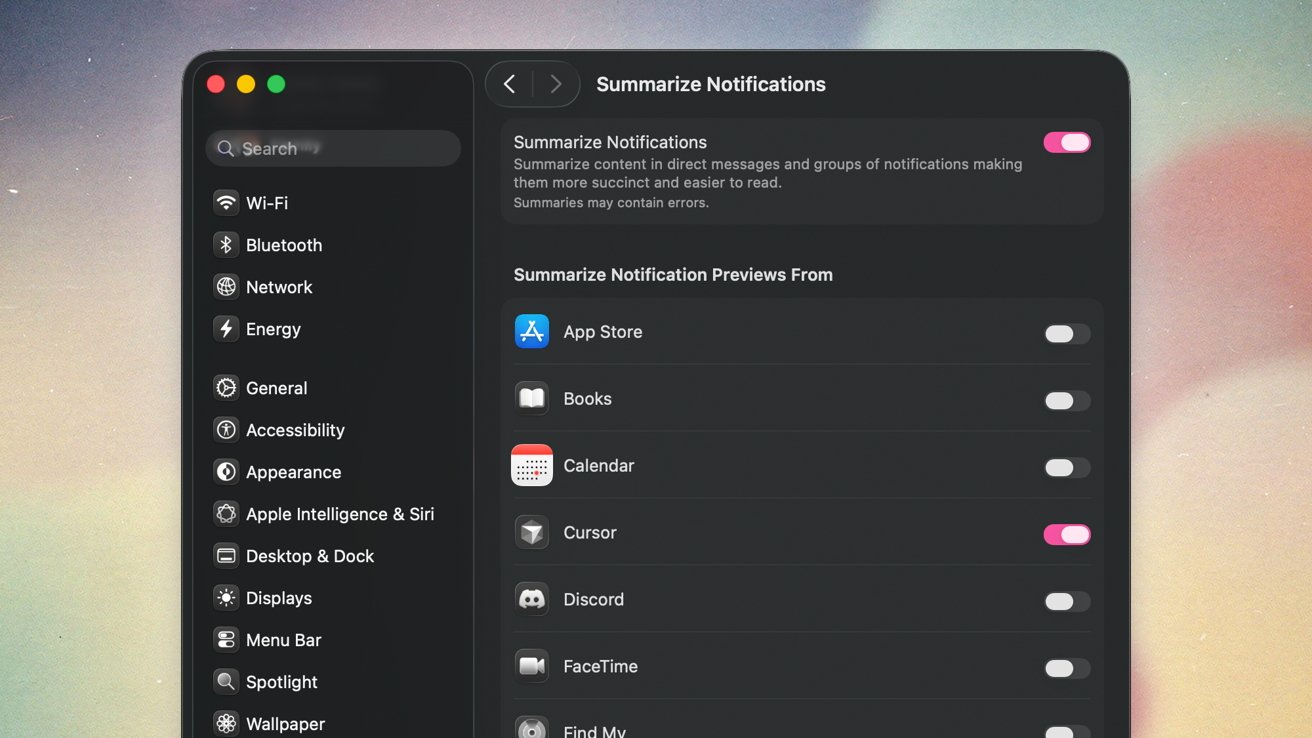
Consider employing the Strategic Summary feature if it aligns with your workflow. Summarizing notifications can organize them into digestible chunks, reducing the feeling of overwhelm and allowing you to tackle alerts at your own pace. This tool can be particularly beneficial if you prefer periodically checking notifications rather than being constantly interrupted throughout the day.
Ultimately, the goal of effective notification management on macOS is to foster an environment where technology serves to enhance your life rather than dictate it. By taking the time to prioritize alerts, establish quiet periods, and regularly adapt your settings, you can achieve a seamless balance that enhances productivity and well-being. Celebrate each small victory as you refine your settings, knowing that every step brings you closer to a system perfectly tuned to your needs—one where you are in control, with technology as your ally, not your adversary. For related coverage, see our Apple TV launches Formula 1 channel amidst mixed user reactions.
